

User Accounts
Create and manage user accounts for the solution.
Overview
Users are individuals authorized to access the solution. Each user account is configured with specific profiles, permissions, and user groups to define their access. To sign in to the solution, users must enter their username and password. For additional authentication and access controls, such as single sign-on, or restricting network access, see Set Up Single Sign-On and Set Up Network Access.
The easiest way to get started is to add user accounts individually within the Users room. This feature is also available through Visier's public APIs. For more information, seeUsers API.
Note:
The Users room
The Users room is where you create and manage user accounts. From the list, you can select an individual to view and modify their account settings.
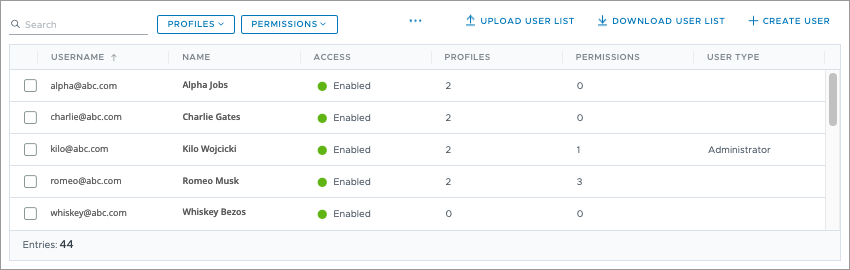
Note: You may see obscured usernames at the end of the Users list. These represent Visier Support users who have access to your data.
You can access the Users room from either the global workspace or in a project. Because security changes must be reviewed and published using the project lifecycle, the available options depend on the workspace you're in.
-
Global workspace: Create, edit, and delete user accounts, assign profiles, update user details, and reset passwords.
-
In a project: Assign permissions and view granular user access details. For more information, see Use Projects for Version Control.
Alternatively, you can use Visier APIs to assign permissions without using the project lifecycle. For more information, see Non-Versioned Security.
To access the Users room:
| Option | Do this |
|---|---|
|
In the global workspace |
On the global navigation bar, click Tenant, and then click the Users tab. |
| In a project |
On the navigation bar, click Security > Users. |
More security around data access management
Visier has also implemented additional safeguards that further limit who can manage permissions, change user groups, and preview as other users. We recommend that you turn on this feature to ensure administrators cannot access additional data or give themselves a higher access level than they have been assigned.
If this feature is enabled, administrators will need access to all data, such as the Super Admin permission, to perform the following actions:
- Assign permissions.
- Create and edit permissions.
- Create and edit user groups.
- Create and edit data access sets.
- Create and edit security filters.
- Preview the solution as a user.